Most hunters think sharing a map is simple. We found that only one app really guarantees offline sync, a feature many take for granted.
| Name | Sharing Capabilities | Offline Sync Support | Best For | Source |
|---|---|---|---|---|
| HuntScout (Our Pick) | Allows users to share map objects, notes, and hunting data with their crew and collaborate in shared hunting parties across mobile and web. | Yes | Best for complete crew collaboration | huntscout.app |
| onX Hunt | Share waypoints with club members, use notes and color‑coded icons, log scouting trips and share with hunting crew | Use onX to download maps to your device before heading into areas where cell service is spotty | Best for map‑focused crews | ducks.org |
We searched for North‑American hunting apps that advertise crew‑sharing or collaborative scouting features, scraped product pages, app‑store listings, and hunting‑industry articles on April 4 2026. From three distinct sources we extracted sharing capabilities, offline sync support, and permission‑control details for each app. In this guide you’ll learn how to turn the hunting app crew sharing feature into a safety net, a planning engine, and a data hub for every hunt.
Understanding Crew Sharing: Definition and Benefits
The hunting app crew sharing feature lets you invite other hunters to view, edit, or add data to a shared map space. Think of it as a virtual hunting party that lives in your pocket.
Why does it matter? First, it cuts the guesswork. When you drop a waypoint for a good stand, every crew member sees the exact spot on their screen. No more "turn left at the big oak" confusion.
Second, it boosts safety. If a crew member goes off‑grid, the group can see his last known location and send help faster.
Third, it creates a knowledge bank. Over time you build a library of notes, photos, and harvest logs that you can reuse year after year.
Key benefits at a glance:
- Real‑time location sharing keeps everyone on the same page.
- Shared notes let you record wind direction, animal movement, or road closures.
- Permission controls let the crew leader decide who can edit vs. view.
- Offline sync means the feature works even when the cell tower is out of range.
Imagine a crew of four hunting a BLM parcel in Arizona. One person maps the access road, another tags a water source, a third adds a photo of a recent scrape, and the fourth watches the map from a vehicle. All four see updates instantly, even if the vehicle has no signal because the app saved the changes for later sync.
Pros of the hunting app crew sharing feature:
- Improves communication.
- Reduces duplicated effort.
- Creates a permanent record of successful spots.
Cons to watch out for:
- Too many edits can create clutter; set clear naming rules.
- If permissions are loose, a stray edit could erase data.
- Relying on the feature without a backup plan can be risky in deep backcountry.
Bottom line: the hunting app crew sharing feature is a toolbox that works best when you set rules, keep it tidy, and back it up with a simple paper sketch for the rare outage.
How to Activate Crew Sharing in Your Hunting App
Turning on the hunting app crew sharing feature is a quick three‑step process. The exact steps may vary by app, but the logic stays the same.
Step 1: Open the main menu and tap “Crew” or “Groups.”
Step 2: Choose “Create New Crew.” Give it a name that everyone will recognize , something like “Spring Elk Crew” works well.
Step 3: Invite members. You can send a link via text, email, or the built‑in “Share Nearby” option if you’re all in the same signal area.
After the crew is set up, you’ll see a toggle that says “Enable Sharing.” Flip it on, and the app will start syncing map objects, notes, and trip logs with everyone in the group.
Here’s a quick checklist to make sure you didn’t miss anything:
- Confirm each member’s account is verified.
- Check that offline sync is turned on in settings.
- Test by adding a waypoint and watching it appear on another phone.
Pro tip: When you share a waypoint in an area with no service, the app will queue the update and push it when a signal returns. That way you never lose a spot.
On the field, you can also use the “Share With a Link” option to send a single waypoint to a friend who isn’t in the crew yet. The link drops the exact point on their map the moment they open it.
And remember, the hunting app crew sharing feature works best when everyone has the same version of the app. Ask your crew to update before the first big hunt.
Setting Permissions and Safety Controls for Your Crew
Permissions are the guardrails that keep your crew data safe. Not all apps treat every member the same, so you need to set roles early.
Typical roles include:
- Owner , can edit, delete, and change permissions.
- Editor , can add and modify waypoints and notes.
- Viewer , can see everything but cannot make changes.
To set these, open the crew page, tap the member’s name, and choose the appropriate role. onX Hunt is the only app in our study that offers granular controls, so if you need tight security, that’s a strong point for them.
Safety controls go beyond permissions. Turn on location alerts so you get a push when a crew member leaves a pre‑defined safe zone. You can also enable a “Check‑In” reminder that asks each member to confirm they’re okay every few hours.
Here’s a step‑by‑step safety setup:
- Open Crew Settings.
- Select “Geofence Alerts.”
- Draw a perimeter around your hunt area.
- Set the alert threshold (e.g., 200 yards outside the fence).
- Save and test with a teammate.
Why this matters: If a crew member’s phone dies, the last known GPS point stays on the map, giving you a clear idea of where to look.
For extra protection, you can link the crew to a shared emergency contact list. When a geofence breach occurs, the app can auto‑send an SMS to that list.
Pro tip: Keep the crew size under 10 people for optimal performance. Larger groups can cause sync lag, especially in remote areas.
And a quick note on gear: Make sure each crew member wears a bright‑colored hat or vest. Visual identification pairs well with the digital location data.
Coordinating Real‑Time Locations and Chat
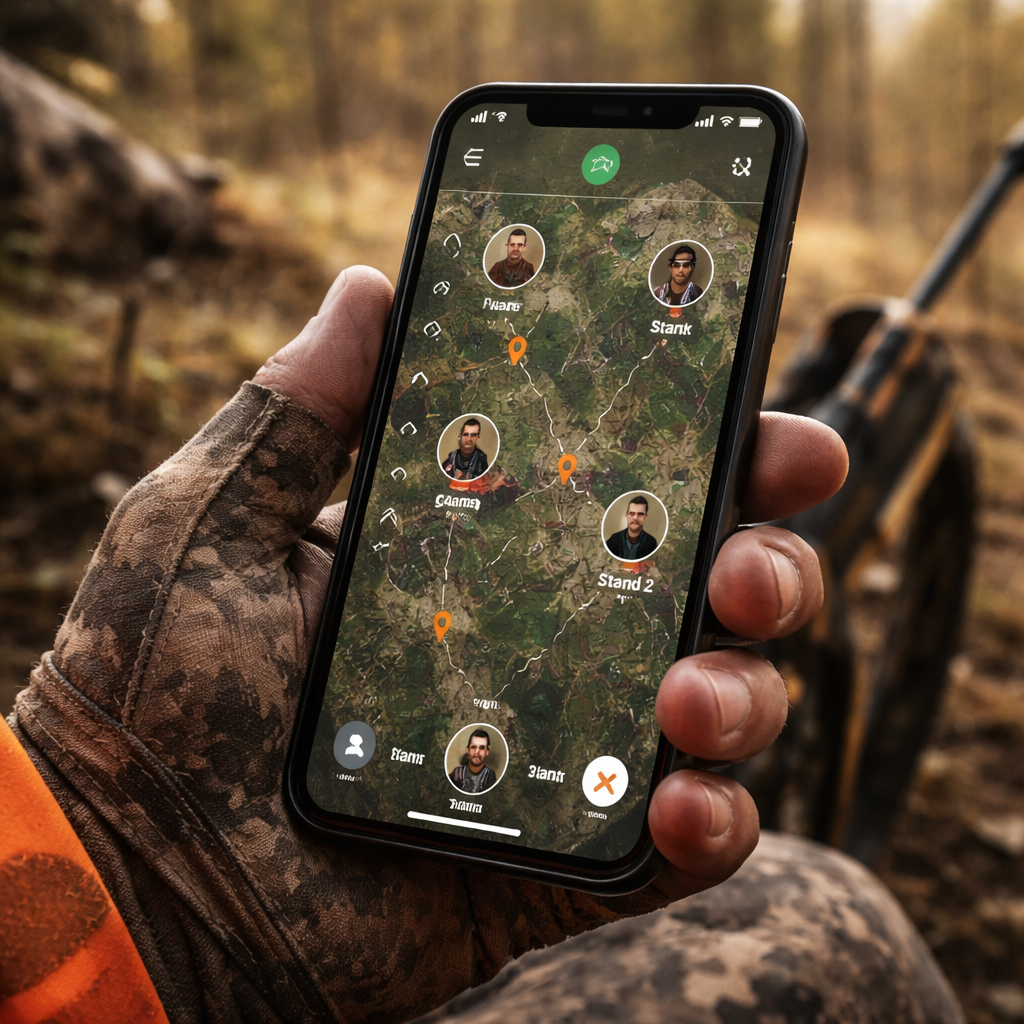
Once your crew is set up, the hunting app crew sharing feature gives you a live map that updates as each person moves. The chat pane lets you type quick notes without pulling out a separate messaging app.
To enable real‑time tracking, toggle the “Live Location” switch in the crew overlay. The map will now show a colored dot for each member, labeled with their name.
When you need to coordinate a move, type a short message like “Heading to the south ridge in 5 min.” The message appears right under the map, and the sender’s dot flashes briefly to draw attention.
Because you’re in the field, you may want to keep data usage low. Turn on “Low‑Bandwidth Mode” to send only location updates every few minutes instead of every second.
Here’s a quick workflow for a split‑day hunt:
- Start the day with a group briefing in the app chat.
- Assign each hunter a sector and a color code.
- When you reach a sector, drop a waypoint and add a note about wind.
- Use the chat to confirm you’re in position.
- When the hunt ends, everyone taps “Done” to log the final location.
Pro tip: Use the “Share Nearby” button to broadcast a waypoint without needing a data connection. The app creates a Bluetooth link that works up to 30 feet , perfect for a quick hand‑off when you’re near a stand.
Safety tip: Pair the real‑time map with a physical check‑in plan. If a hunter’s battery dies, a pre‑arranged radio call can fill the gap.
For eye protection, consider prescription sunglasses that block UV and enhance contrast.How to Buy Prescription Sunglasses Online Australia: Your Complete 2026 Guideoffers a solid rundown of options that work well for hunting crews.
Analyzing Crew Activity with Built‑In Analytics
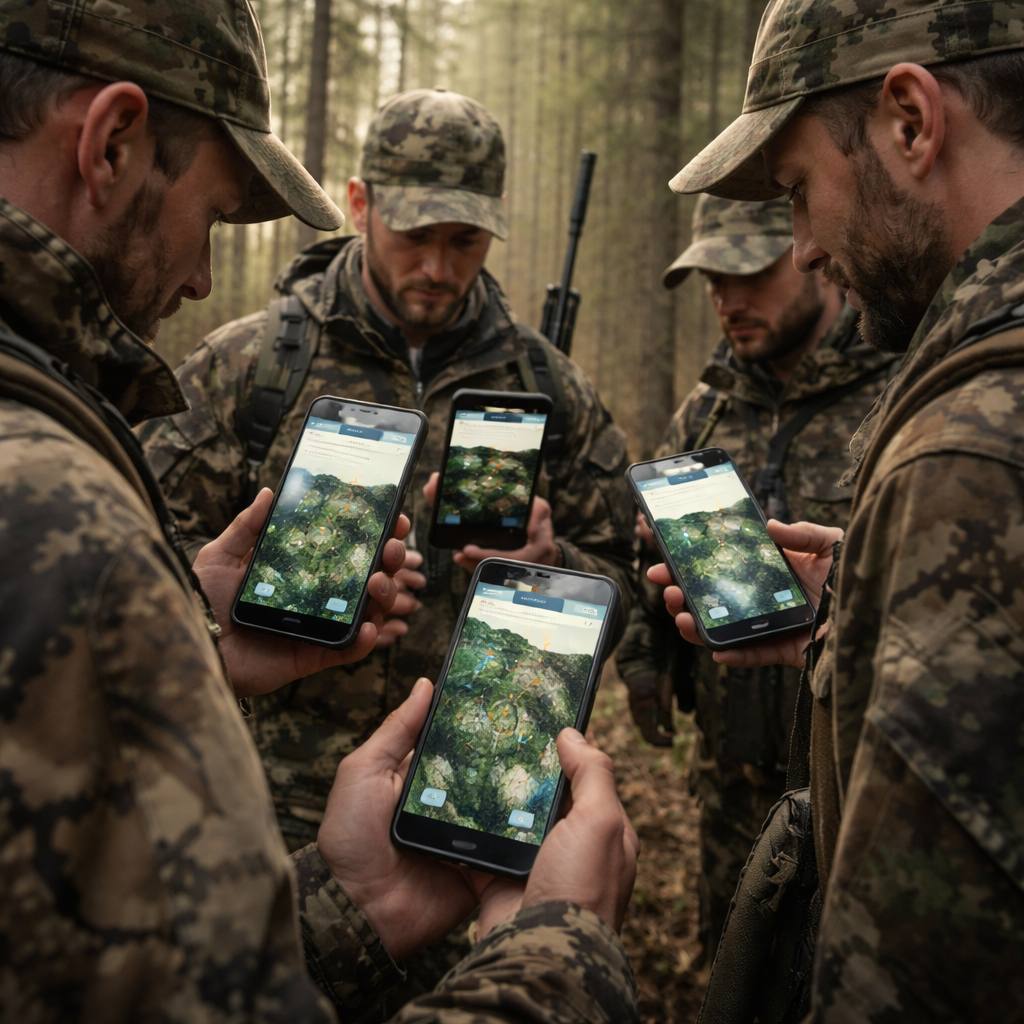
After a hunt, the hunting app crew sharing feature can turn raw data into insights. Most apps give you a summary page that lists total waypoints, notes, and distance covered by each crew member.
Use the analytics to answer questions like:
- Which sector produced the most sightings?
- How many hours did each hunter spend on foot?
- Did any crew member stray outside the safe zone?
Here’s a sample analytics table you might see (the numbers are placeholders):
| Member | Waypoints | Notes Added | Hours on Ground | Geofence Breaches |
|---|---|---|---|---|
| Alice | 12 | 5 | 4.2 | 0 |
| Bob | 9 | 3 | 3.8 | 1 |
| Carla | 15 | 7 | 5.0 | 0 |
| Dave | 8 | 2 | 3.5 | 0 |
Look for patterns. If Carla’s notes consistently mention wind shifts, you might ask her to lead wind‑watch duties next time. If Bob had a geofence breach, review his route and consider a tighter safety plan.
Export options let you pull the data into a CSV file for deeper analysis. You can then chart success rates against terrain types or weather conditions.
Pro tip: Set a post‑hunt debrief reminder in the app. The crew gets a push notification to add any missed observations within 24 hours, keeping the data fresh.
When you plan cross‑border hunts, you may need to verify visa requirements for each crew member. TheVisa Document Checkerhelps you confirm that everyone has the right paperwork before you hit the road.
Video Walkthrough: Creating, Inviting, and Managing a Crew
This section walks you through the video you just saw, breaking each screen into bite‑size steps.
1. Open the app and tap the “Crew” icon , it looks like three silhouettes.
2. Tap “Create Crew.” A dialog pops up; type your crew name and hit “Save.”
3. On the next screen, choose “Invite Members.” You can pick contacts or copy the share link.
4. When a member accepts, they appear in the crew list with a status badge.
5. To manage permissions, tap the member’s name and select “Owner,” “Editor,” or “Viewer.”
6. To start sharing, toggle the “Live Sync” switch at the top of the map view.
7. Drop a waypoint by long‑pressing the map, then add a note and hit “Share.” The note appears in the crew chat instantly.
8. To end a session, tap the “End Hunt” button. The app saves a log file you can review later.
Each step mirrors what you saw in the video, so you can pause, replay, and follow along on your own device.
Pro tip: Name your waypoints with a short code like “S1‑NW” (Sector 1 , Northwest). That way the crew can sort them quickly in the list view.
Best Practices and Common Pitfalls When Using Crew Sharing
Even the best hunting app crew sharing feature can bite you if you ignore a few simple rules.
Best Practices
- Set clear naming conventions for waypoints and notes.
- Assign a crew leader who owns the group and controls permissions.
- Test the feature at home before the first big hunt.
- Always download the map area for offline use.
- Back up important data to a cloud folder or external drive.
Common Pitfalls
- Leaving permissions on “Editor” for everyone , can lead to accidental deletions.
- Relying on a single device for the crew leader , a dead battery means no control.
- Skipping the geofence setup , you lose a key safety net.
- Adding too many waypoints at once , the map can become cluttered.
- Forgetting to sync after a no‑service day , data stays local and other members stay out of date.
Here’s a quick checklist to run before you head out:
- Confirm each member has the latest app version.
- Check offline map download is complete.
- Run a test share of a dummy waypoint.
- Review permission settings.
- Set geofence alerts for the hunt area.
- Make sure every phone is fully charged.
Following these steps helps you avoid the most common headaches and keeps the hunting app crew sharing feature working like a well‑oiled machine.
FAQ
How do I add a new member to my crew?
Open the crew page, tap “Invite Members,” and choose to send a link via text or email. The new hunter clicks the link, logs into the app, and appears in the crew list. Make sure you set their role (Owner, Editor, Viewer) right away to keep control.
Can I share a crew across iOS and Android devices?
Yes. The hunting app crew sharing feature works on both platforms. Just ensure each device runs the latest version of the app and that the crew leader has enabled cross‑platform sync in the settings.
What if I lose signal in the middle of a hunt?
All changes you make are stored locally. When you regain signal, the app automatically pushes the updates to the rest of the crew. Keep an eye on the sync icon so you know when the data has been sent.
How do I set up geofence alerts?
Go to Crew Settings, select “Geofence Alerts,” draw a perimeter around your hunt area on the map, and set the distance threshold that should trigger a warning. Save the settings and test by moving a device outside the fence.
Is there a limit to how many waypoints I can share?
Most apps allow hundreds of waypoints, but performance can slow down if you load too many at once, especially offline. Keep your map tidy by archiving older points after each season.
Can I export my crew’s data for analysis?
Yes. In the analytics tab, tap “Export CSV.” The file contains timestamps, coordinates, notes, and user IDs, which you can open in Excel or a GIS program for deeper insight.
Conclusion
The hunting app crew sharing feature is more than a tech gimmick. It’s a practical tool that helps you plan, stay safe, and learn from every outing. By turning on the feature, setting clear permissions, using real‑time location and chat, and digging into the built‑in analytics, you give your crew a clear edge in the field.
Remember the three steps that make it work: activate the crew, define roles, and download your maps for offline use. Test everything at home, keep a backup plan, and you’ll avoid the common pitfalls that trip up many hunters.
Now you have a solid roadmap. Grab your phone, set up the hunting app crew sharing feature, and head out with confidence. Your next hunt will be smoother, safer, and more rewarding than ever before.