Ready to level up your hunt? The right hunting app can mean the difference between a day in the woods and a trophy on the wall. In this guide you’ll learn how to pick, download, and fine‑tune the best hunting app for Android so you’re set for success every time you head out.
Step 1: Choose the Right Hunting App for Your Needs
Finding the perfect hunting app download Android starts with knowing what you need in the field. Do you want detailed maps? Do you need wind forecasts? Do you track trail cam photos? Answering these questions narrows the field.
One solid place to start is the roundup of top hunting apps from a trusted outdoor magazine. It lists HuntStand, OnX Hunt, DeerCast, Hornady Ballistics, and a few others, noting which ones offer free versus premium features. Petersen’s hunting app roundup breaks down each app’s map layers, weather tools, and data sync options.
Another quick read covers the same apps but focuses on the newest 2026 updates. It highlights HuntStand’s 15‑day game movement forecast and OnX Hunt’s offline map improvements. The updated review also flags which apps still require a subscription for premium layers.
Here’s a quick comparison to help you decide:
| App | Mapping | Weather/Wind | Ballistics | Cost |
|---|---|---|---|---|
| HuntStand | 7 base layers, property lines, custom draw tools | Basic forecast, premium wind model | 4DOF ballistic solver (free) | Free + paid premium |
| OnX Hunt | Topography, public/private boundaries, offline maps | Wind calendar, detailed wind direction | None built‑in | Free trial, then subscription |
| DeerCast | Multi‑layer maps, food plot measurement | 14‑day movement forecast, wind overlay | Basic ballistic data | Free basic, premium upgrade |
Think about your hunt style. If you spend most of your time on public land, a map‑heavy app like OnX Hunt will save you time. If you hunt whitetail and love detailed forecasts, DeerCast’s movement model may be worth the extra cost.
Pros and cons list:
- HuntStand: Pros – rich map tools, free ballistic solver. Cons – premium needed for offline maps.
- OnX Hunt: Pros – reliable offline maps, strong topography. Cons – no built‑in ballistics.
- DeerCast: Pros – long‑range movement forecasts. Cons – fewer map layers than HuntStand.
Action steps:
- Write down the three features you can’t hunt without.
- Match those features to the table above.
- Pick the app that covers at least two of your must‑have features.
Once you’ve made your pick, you’re ready for the next step: making sure your Android phone can run it smoothly.
Step 2: Check Your Android Device Compatibility
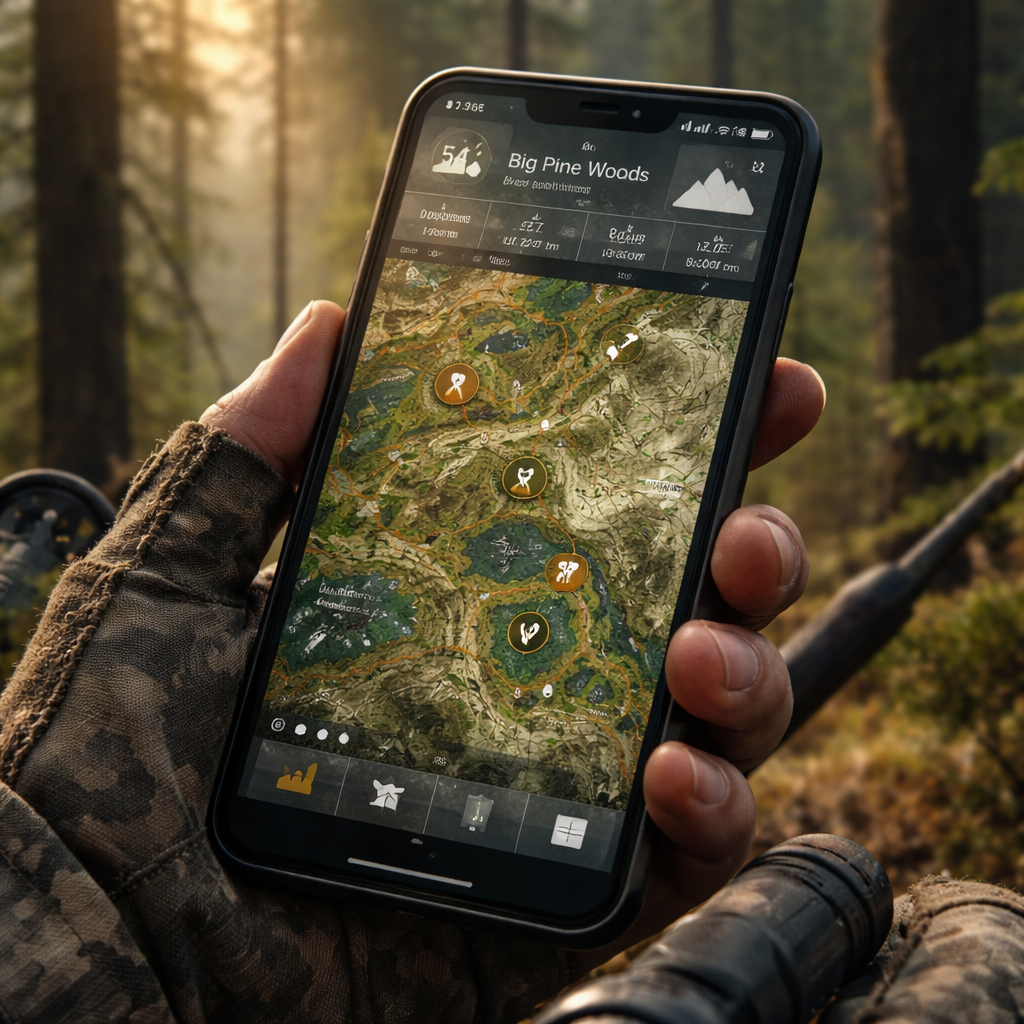
Before you hit the Play Store, double‑check that your phone meets the app’s minimum specs. Most hunting apps need Android 7.0 or newer and at least 2 GB of RAM. If you run an older device, the map may lag or crash.
First, open Settings → About phone. Look for Android version and RAM. If you see Android 8.0 or higher, you’re good.
Second, make sure you have enough free storage. Mapping apps can eat up 500 MB to a few gigabytes, especially if you plan to download offline maps. Aim for at least 2 GB of free space.
Third, check your GPS accuracy setting. Some phones let you enable “high accuracy” mode, which blends GPS, Wi‑Fi, and cellular data. Turn this on in Settings → Location → Mode → High accuracy. This gives you precise waypoints in the field.
If your device falls short, you have two options: free up space, update the OS, or consider a budget Android device with a fresh OS install. Many hunters use a secondary, low‑cost Android phone just for the app.
Quick checklist:
- Android 7.0+?
- At least 2 GB RAM?
- 2 GB free storage?
- High‑accuracy GPS enabled?
Once your phone passes the checklist, you can move on to the download.
Step 3: Download From Google Play Store Safely
Now it’s time for the hunting app download Android step that most people skip: safety. The Play Store is generally safe, but fake apps still appear.
Start by opening the Play Store and typing the exact app name—e.g., “HuntStand” or “OnX Hunt”. Look for the official publisher name and a high rating (4.5+ stars). The official HuntStand app is published by HuntStand, Inc.
Read the first few reviews. Real users talk about map speed, battery drain, and offline map performance. Spot any review that says “spam” or “does not work”. Those are red flags.
Next, verify the app’s permissions. A hunting app should ask for location, storage, and maybe camera (for trail cam uploads). If it asks for contacts or SMS, it’s probably a fake.
When you’re sure it’s legit, tap Install. The download size may be 150 MB to 300 MB. Wait for it to finish before opening.
Security tip: after installing, run a quick scan with a trusted Android antivirus. PCMag’s Android antivirus roundup lists Bitdefender Total Security and Norton 360 as top choices. A quick scan gives you peace of mind.
After the scan, open the app and let it update its map data. This may take another 200 MB, depending on the region you select.
Here’s a short video that walks through the Play Store download process and shows how to spot a fake app.
When the app launches, you’ll see a welcome screen and an option to sign in or create an account. Most hunting apps let you use an email or a social login. Choose the method you prefer.
Step 4: Grant Essential Permissions and Setup
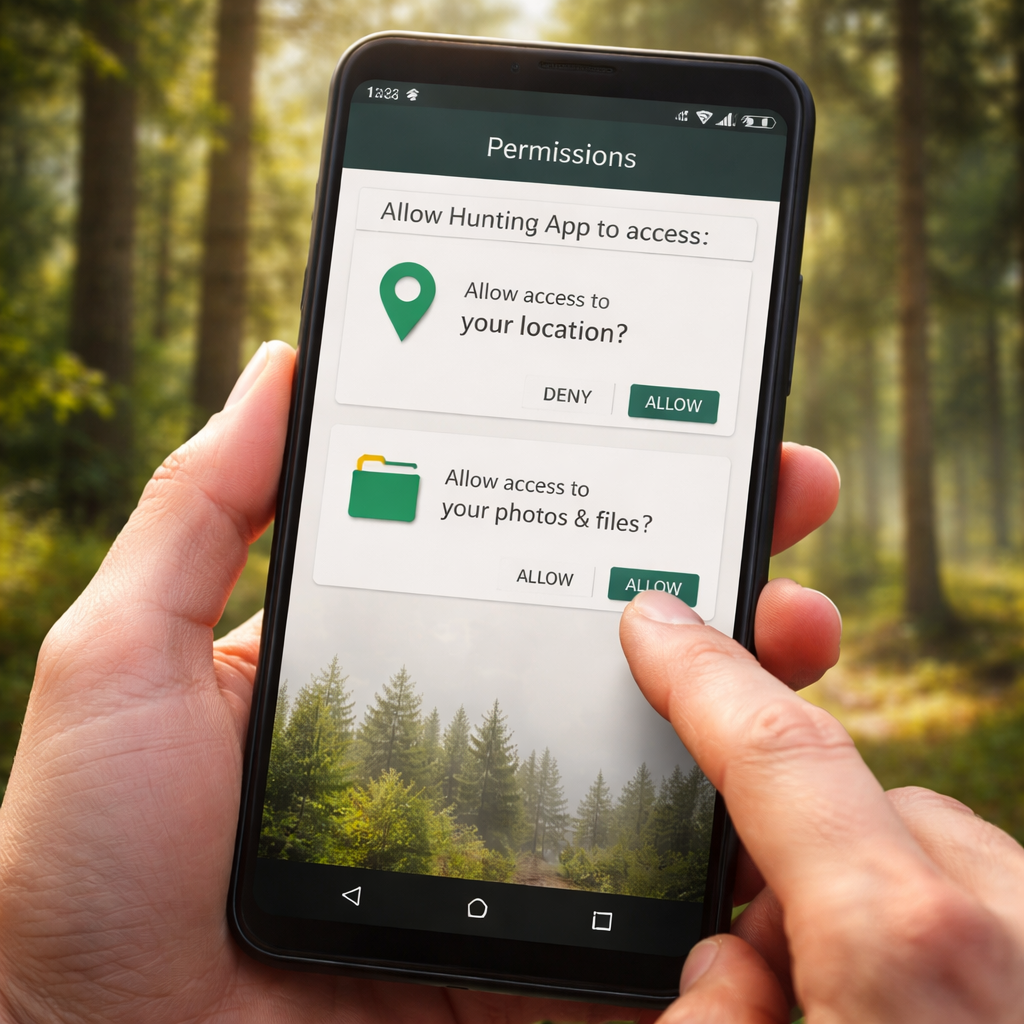
After the first launch, the app will ask for a handful of permissions. Granting the right ones lets the app work as intended.
Location permission is the biggest. Choose “Allow all the time” so the app can track you even when you’re offline. This is key for waypoint logging.
Storage permission lets you save offline maps and cache trail‑camera photos. Pick “Allow access to all files” if your phone asks for a broader option.
Some apps also ask for camera access. This is useful if you want to snap a quick photo of a rub or a fresh trail and attach it to a waypoint.
If a permission seems odd—like contacts or microphone—deny it. Most hunting apps never need those.
Once permissions are set, you’ll see the main dashboard. Take a few minutes to explore the menu:
- Map view – where you’ll plot routes.
- Weather – quick look at wind and temperature.
- Gear – optional inventory tracker.
- Profile – where you manage your account.
Set up your profile with a username, email, and optionally link your favorite social hunting community. This helps you share waypoints later.
Tip: Turn on push notifications for weather alerts. A sudden wind shift can change a stand’s performance in minutes.
Now you’re ready to load maps.
Step 5: Configure Maps and Offline Features
Maps are the heart of any hunting app download Android experience. You need them to work without cell service, especially in remote backcountry.
Open the map tab and pick the region you’ll hunt. Most apps let you choose a state, province, or even a custom area. For onX Hunt, the offline map page explains how to pick resolution. OnX Hunt’s offline map guide says you can select High, Medium, or Low resolution.
High resolution gives you the most detail but uses more storage. If you plan a short day hunt in a compact area, go high. If you’re covering a large range, Medium or Low saves space.
Download the map while you still have Wi‑Fi. The app will show an estimated size and how much free space you have left. Confirm the download.
After the download finishes, toggle airplane mode. This forces the app to stay offline and saves battery. You’ll still see your location on the saved map because GPS works without a signal.
Next, add custom waypoints. Tap the map, drop a pin, and label it “Rub #1” or “Food Plot”. Most apps let you choose an icon from a library of 100+ symbols. Use color‑coding to separate stands, water sources, and travel routes.
Finally, test the distance tool. Measure the line from your truck to the stand. This helps you plan travel time and fuel needs.
Pro tip: Save overlapping maps so you never walk off the edge of a saved area. Stack a high‑res map inside a medium‑res one for full coverage.
Step 6: Test Your App Before Heading Out
Before you drive to the field, run a quick test. Open the app, turn off Wi‑Fi, and switch to airplane mode. Make sure the map still shows your location.
Try adding a new waypoint while offline. It should save locally and sync later when you reconnect.
If the app freezes, clear its cache. Go to Settings → Apps → Your hunting app → Storage → Clear cache. This often fixes lag without losing data.
Should the app still misbehave, reinstall it. The Google Play support page lists the steps: uninstall, restart the phone, then reinstall from the Play Store. Google Play’s reinstall guide explains the process.
Finally, do a short walk around your yard or driveway with the app active. Verify that distance readings feel accurate and that the battery drain is acceptable (most apps use ~5% per hour).
If everything checks out, you’re ready for the real hunt. Pack a power bank—offline maps can drain the battery faster than normal use.
Frequently Asked Questions
Can I use a hunting app download Android on a tablet instead of a phone?
Yes. Most hunting apps are built for both phones and tablets. The larger screen makes map reading easier, and the same permissions apply. Just make sure the tablet runs Android 7.0 or newer and has enough storage for offline maps.
Do I need an internet connection to get weather updates?
No. You can download a 7‑day forecast before you head out. The app stores the data locally, so you’ll still see wind speed, direction, and temperature even without a signal. Just remember to refresh the forecast while you still have Wi‑Fi.
How much storage will offline maps use?
It varies by resolution. A low‑resolution state map may be 200 MB, medium around 500 MB, and high up to 1.5 GB. Check the download size shown in the app and compare it to your free space. It’s a good habit to free up space by clearing old map files you no longer need.
Will the hunting app download Android work on a rooted device?
Most apps work on rooted phones, but some may block certain features for security reasons. If you notice missing map layers or failed updates, try disabling root‑only protections or use a non‑rooted device for the best experience.
Can I share my waypoints with friends?
Yes. Almost every major hunting app lets you export or share waypoints via a link or a file (KML/GPX). Your friends can import the file into their own app and see the same pins. Some apps even have a built‑in social feed for easy sharing.
What should I do if the app crashes during a hunt?
First, try clearing the cache in Settings → Apps. If that doesn’t help, close the app, restart your phone, and reopen it. If crashes continue, reinstall the app using the steps from Google Play’s guide. Keeping the app updated also reduces crash risk.
Conclusion
Getting the right hunting app download Android set up takes a few steps, but the payoff is huge. You start by picking an app that matches your hunting style, then you make sure your Android device can run it. After a safe download from the Play Store, you grant only the permissions you need, load offline maps, and run a quick test before you head out. With the map, weather, and waypoint tools ready, you’ll spend more time hunting and less time fiddling with tech. So grab your phone, follow this guide, and hit the field confident that you’ve got the best digital companion for a successful 2026 season.