Cell service drops the moment you step into the backcountry. That can ruin a hunt fast. Knowing how to use offline maps for hunting keeps you on the right trail, even when the bars disappear. In this guide you’ll learn how to pick the right app, download your area, set waypoints, compare the top tools, and stay safe in the field.
Step 1: Choose the Right Offline Map App
First, you need an app that works offline. Not every map app lets you save data before you go. Look for a program that lets you pick map layers, drop pins, and run on battery power.
Two popular choices are onX Hunt and Organic Maps. onX Hunt is built for hunters and offers land‑ownership layers, hunting zones, and terrain detail. Organic Maps is free, privacy‑focused, and works 100% offline once you download the area.
When you compare them, ask yourself these questions:
- Can I save satellite, topographic, and land‑type layers?
- Does the app let me add custom waypoints?
- Is the battery draw low enough for a full day?
Both apps meet those basics, but onX adds a hunting‑specific overlay that shows public vs. private land. Organic Maps keeps things simple and ad‑free. Try the free versions first, then decide if you need the premium hunting layers.
After you pick an app, the next step is to pull the maps onto your phone before you leave home.
Tip: Test the app on a short hike near town to make sure the offline mode works and the pins stay where you put them.
For a deeper look at hunting‑focused map layers, check out the onX best‑hunting‑GPS guide. It walks you through the features that matter most when you’re out in the woods.
And if you want a privacy‑first option, see Organic Maps’ official page for details on how the open‑source project handles data.
Step 2: Download and Pre‑Load Your Hunting Area Maps
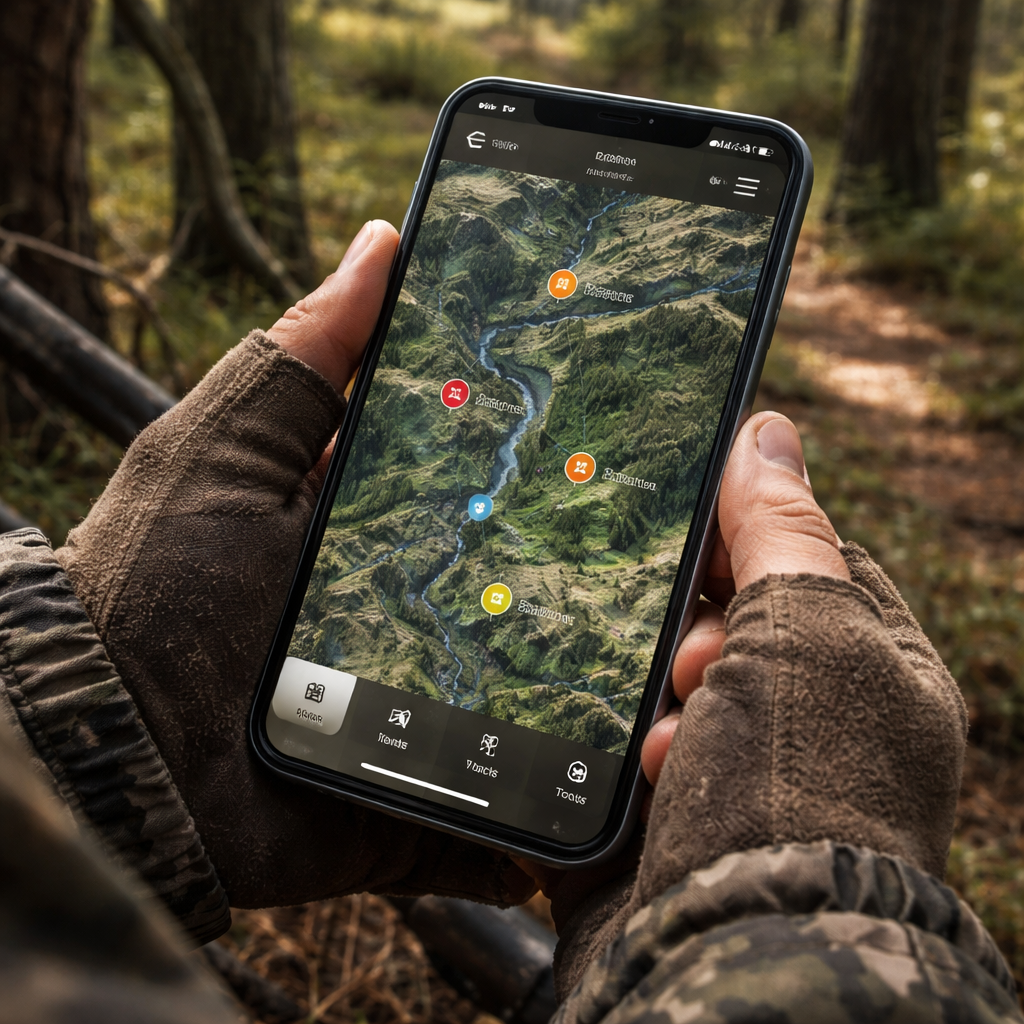
Now that you have the right app, you need to actually download the map data. This is the core of how to use offline maps for hunting. If you skip this step, you’ll end up staring at a blank screen in the middle of a ridge.
onX Hunt walks you through the process step by step. First, tap the “Offline Maps” button in the menu. Then hit “New Offline Map” and draw a red rectangle around the area you plan to hunt. Choose a map size that covers the whole zone, name it, and hit Save.
After you’ve queued the map, open the Hunt app, tap the download arrow next to the map name, and let it pull the data onto your device. The app stores all layers , satellite, topo, land ownership , inside the boundary you drew. GPS works without data, so you’ll still see a blue dot tracking your location.
Before you head out, tap “Go Offline” to stop the phone from searching for a signal. Turn on Airplane Mode for extra battery savings. Test the map by switching the phone to Airplane Mode , you should still see your location and all layers.With a premium onX Hunt membership, the only limit is how much storage you have on the phone. The files are kept small, so you can save several areas if you need to travel between spots.
Here’s a quick checklist to make sure you’re ready:
- Open the Offline Maps menu.
- Select New Offline Map and draw the area.
- Name the map and add any notes.
- Download the map to the device.
- Enable Go Offline and Airplane Mode.
- Verify the map works by turning off Wi‑Fi and cellular.
For the official tutorial, see onX Hunt’s offline‑maps guide. It explains each tap with screenshots.
Below is a short video that shows the whole process in action.
And remember, the map you saved will also appear on any other device linked to the same account , just tap the download icon on the second phone.
Step 3: Set Up Waypoints, Trails, and Landmarks
Waypoints are the heart of how to use offline maps for hunting. They let you mark a tree line, a water source, or a good stand without writing anything down.
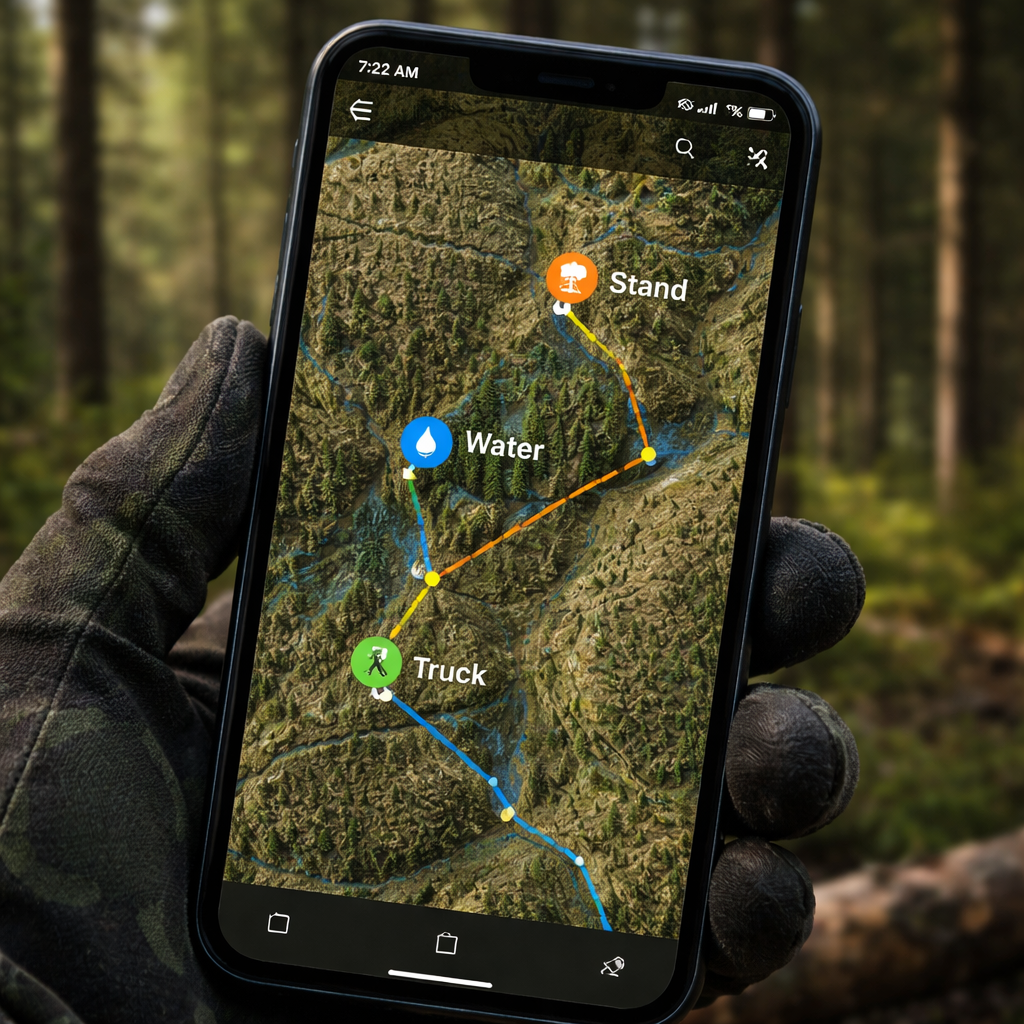
Start by opening the map you saved. Tap the plus sign to add a new waypoint. Give it a short label like “Waterhole” or “Glassing knob.” You can also add a note with the date, wind direction, or any other detail you want to remember.
Organic Maps supports full offline waypoint creation, and onX Hunt lets you add custom icons and colors. Use different colors for different purposes , red for stands, blue for water, green for trails.
Here’s a practical example: Imagine you’re scouting a ridge that funnels deer in the fall. You drop a waypoint at the ridge top, label it “Fall Funnel,” and note “good wind shelter, 2‑hour hike from trailhead.” Later, when you’re out in the field, you just tap that point and the app guides you straight there.
Another tip: create a “Truck” waypoint at your parking spot. That way, if you get lost, you can always navigate back to your vehicle with a single tap.
Don’t forget to map trails you plan to use. Draw a line between waypoints to see the distance and elevation change. Some apps even show a breadcrumb trail as you walk, which helps you backtrack safely.
When you’re done, sync the waypoints to the cloud (if you have a premium account) so they’re safe if your phone dies.
For a privacy‑focused, ad‑free experience, you can also rely on Organic Maps to store waypoints without sending data to a server.
Step 4: Compare Top Offline Map Options for Hunting
Choosing the best tool is the final piece of how to use offline maps for hunting. Below is a quick side‑by‑side look at the top three options that hunters trust.
| Feature | onX Hunt | Organic Maps | Garmin GPSMAP 66i |
|---|---|---|---|
| Offline layers | Satellite, topo, land ownership, WMU | Satellite, topo, basic land layers | Pre‑loaded topo, user‑loaded maps |
| Waypoint types | Custom icons, colors, notes | Simple pins, notes | Standard pins, limited notes |
| Battery use | Low when in Airplane Mode | Very low, no background data | Up to 35 hrs on rechargeable battery |
| Durability | Phone‑based, needs case | Phone‑based, lightweight | Rugged, water‑resistant |
| Safety extras | Two‑way messaging, SOS (with Premium) | None built‑in | SOS button via satellite |
Why does this matter? If you hunt deep in the woods, you’ll likely be without cell service for hours. onX gives you hunting‑specific layers, which saves you time scanning for the right info. Organic Maps keeps things simple and battery‑friendly. The Garmin GPSMAP 66i is a dedicated device that survives drops and rain, but it costs more and needs separate charging.
Here are three scenarios and the tool that fits best:
- Backcountry elk hunt: onX Hunt with offline WMU and land layers.
- Weekend deer walk on public land: Organic Maps for quick pin drops and low power draw.
- Multi‑day remote trek: Garmin GPSMAP 66i for rugged durability and satellite SOS.
Read more about why hunters choose one over another in onX’s best‑hunting‑GPS article. It breaks down the pros and cons of each device.
FAQ
Do offline maps work without a data plan?
Yes. Once you have downloaded the map area, the phone’s GPS can show your location on the saved map without any cellular data. Just enable Airplane Mode to stop the phone from searching for a signal, which also saves battery.
Can I share my waypoints with a hunting buddy?
Most hunting apps let you export or sync waypoints to other accounts. With onX Hunt Premium you can share a map folder, and the other user can see the same pins on their device. Organic Maps lets you export GPX files that any GPS program can read.
How much storage do offline maps need?
Map size depends on the area and the layers you select. A typical 10 km × 10 km block with satellite and topo layers is around 150 MB. If you need several blocks, make sure you have at least a few gigabytes free.
What if my phone dies in the field?
Always carry a small power bank or a spare battery. In addition, keep a paper map and a compass as a backup. The compass works even if all electronics fail.
Do I need a special GPS chip for hunting?
No special chip is required. The built‑in GPS in most smartphones is accurate enough for hunting. Dedicated GPS devices may have longer battery life and stronger antennas, which can help in dense canopy.
How often should I update my offline maps?
Map data changes with new roads, updated land boundaries, and season layers. Refresh your maps at the start of each hunting season, or anytime you hear about a new road or boundary change.
Conclusion
Learning how to use offline maps for hunting changes the whole experience. You start with a solid app, pull the exact area you need, mark every key spot, and walk into the woods with confidence that you won’t get lost or cross a boundary by mistake. The right tool saves time, keeps you safe, and lets you focus on the hunt instead of hunting for a signal.
Pick an app, download your maps, set your waypoints, and get out there. If you want a quick legal reference for New Brunswick crown land, check out Your Guide to the Crown Land Map New Brunswick. Happy hunting, and stay on track even when the bars disappear.