Your iPhone can be the most powerful hunting tool in your pack. But only if you know how to find, download, and set up the right apps. The hunting app download iOS process isn't just about tapping "Get" in the App Store. You need to choose apps that work offline, understand permissions, and optimize your phone for field use.
This guide walks you through everything. You'll learn which hunting apps work best for different types of hunting, how to navigate the App Store efficiently, and the exact steps to download and configure apps for maximum performance. We'll also cover troubleshooting common issues and optimizing your iPhone for hunting conditions.
By the end, you'll have a phone loaded with the right tools and configured perfectly for your next hunt.
Step 1: Choose the Right Hunting App for Your Needs
Before you start any hunting app download iOS process, you need to know what you're looking for. Not all hunting apps are created equal. Some excel at mapping and navigation. Others focus on weather prediction or ballistics calculations. The key is matching the app to your hunting style and needs.
Think about your typical hunt. Do you chase deer on private land where you know every trail? Or do you explore new public hunting areas each season? Are you a long-range shooter who needs precise ballistic data? Or a bow hunter who relies more on wind patterns and animal movement predictions?
Your answers determine which apps deserve space on your phone. Let's break down the main categories and what each offers.
Mapping and Navigation Apps
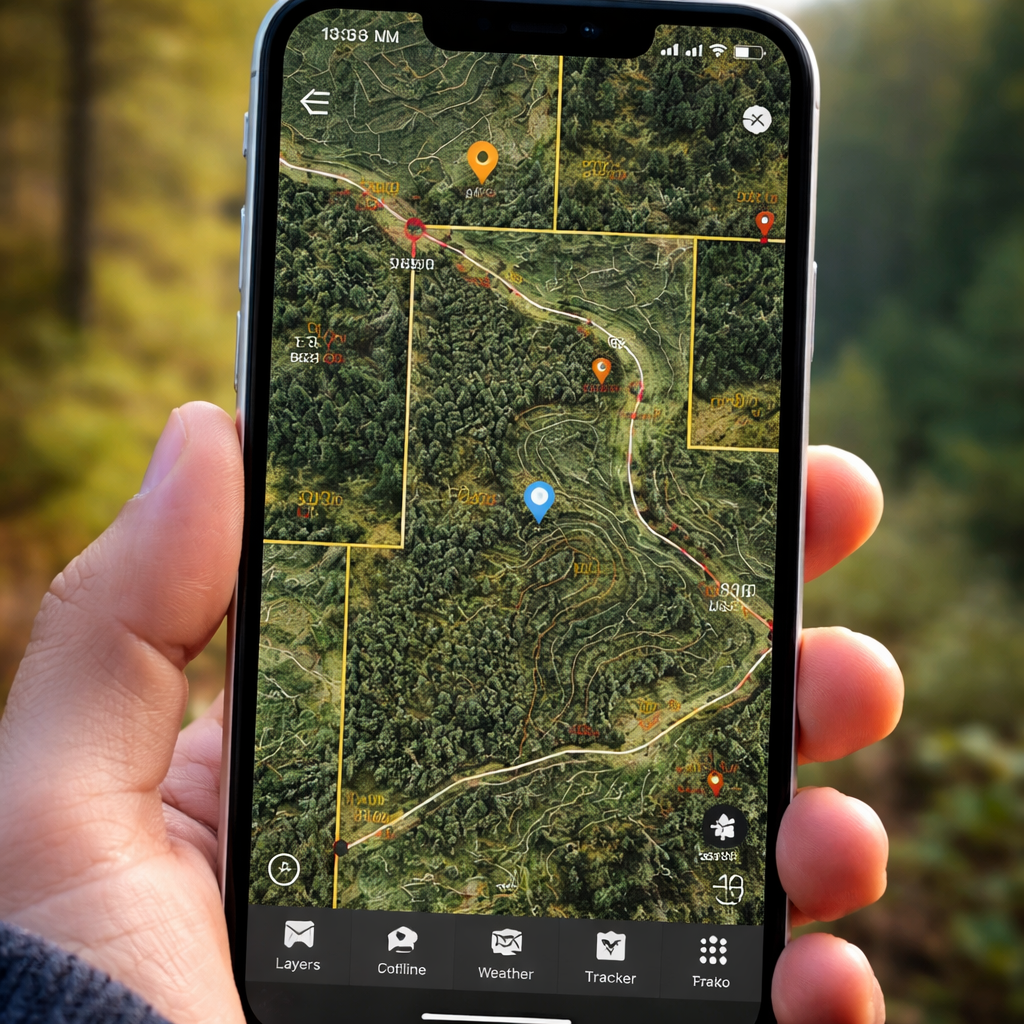
These are the backbone of modern hunting. According to Petersen's Hunting, mapping apps like HuntStand and onX Hunt have become essential tools for serious hunters. They provide detailed topographic maps, property boundaries, and offline navigation capabilities.
HuntStand offers advanced mapping features that let you view property lines nationwide and customize maps by drawing roads, food plot boundaries, fence lines, and trails. You can view these maps against seven different base layers. The app also allows you to measure distances between two map points and organize trail camera photos.
onX Hunt started as a GPS mapping service focused on topography and property boundaries. It has evolved into an all-purpose platform that provides nationwide public and private land boundaries, trail camera integration, and optimal wind calendars. The custom map tools allow you to share entrance and exit routes with fellow hunters.
For hunters who need the most detailed terrain information, Spartan Forge uses LiDAR and UAV technology to provide clear ground topography maps without tree cover. This helps identify travel corridors and suitable bedding habitat. The app also uses artificial intelligence to determine optimum hunting times.
Weather and Movement Prediction Apps
Weather drives animal behavior. Smart hunters use apps that go beyond basic forecasts to predict when animals will be most active. DeerCast offers forecasting of prime times for animal movement up to 14 days in advance. It combines multi-layer maps with wind and weather forecasts.
The app's most valuable feature is in-depth expert advice available with a touch. This includes shot placement charts and individual recovery plans based on shot location. The basic package includes one-day hunt forecasts, mapping waypoints, and food plot area measurement.
HuntWise provides similar features with its HuntCast and WindCast tools. WindCast gives specific forecasts for each of your hunting stands based on wind conditions. HuntCast shows predicted optimum hunting times up to 15 days in advance, depending on your subscription level.
For more sophisticated weather analysis, Windy offers 50 different interactive maps and 13 weather models. Liberty Safe notes that while Windy seems like a basic weather app, it's actually one of the more sophisticated forecasting tools for hunters. You can customize the app to your specific needs with multiple weather models.
Ballistics and Shooting Apps
Long-range hunters need precise ballistic calculations. Hornady's Ballistics APP uses 4DOF (4 Degrees of Freedom) technology to offer trajectory solutions based on bullet drag coefficient and physical modeling. This is the first free ballistic app to measure aerodynamic jump, which is the vertical shift that occurs in crosswind.
Instead of the traditional three degrees of freedom measured by most ballistic apps (windage, elevation, and range), 4DOF also accounts for a bullet's movement around its center of gravity. This provides more accurate ballistic data for ensuring first-shot accuracy.
Applied Ballistics Quantum takes this even further. It's an advanced ballistic solver that connects with Bluetooth-enabled devices like your Kestrel 5700. The Custom Drag Feature allows shooters to tune custom drag models, while the Weapon Employment Zone provides hit probabilities for targets of specific sizes based on real-world data.
Choosing Based on Hunting Style
Your hunting style should drive your hunting app download iOS decisions. Here's how to match apps to common hunting scenarios:
Public Land Hunters: Focus on mapping apps with detailed property boundaries and offline capabilities. onX Hunt and HuntStand are top choices because they clearly show public vs. private land boundaries.
Private Land Managers: Look for apps with stand reservation systems and group collaboration features. HuntStand excels here with its ability to manage hunting stand reservations within shared hunting areas.
Western Big Game Hunters: Prioritize apps with detailed topographic information and long-range weather forecasting. Spartan Forge's LiDAR mapping is particularly valuable for understanding terrain without tree cover.
Whitetail Hunters: Focus on movement prediction and wind analysis. DeerCast and HuntWise offer specialized features for predicting deer activity based on weather patterns and rut timing.
Long-Range Shooters: Ballistics apps are essential. Start with Hornady's free 4DOF app, then consider upgrading to Applied Ballistics Quantum for advanced features.
| Hunting Style | Primary App Type | Top Recommendations | Key Features Needed |
|---|---|---|---|
| Public Land | Mapping | onX Hunt, HuntStand | Property boundaries, offline maps |
| Private Land | Management | HuntStand, HuntWise | Stand reservations, group sharing |
| Western Big Game | Terrain Analysis | Spartan Forge, onX Hunt | LiDAR mapping, elevation data |
| Whitetail | Movement Prediction | DeerCast, HuntWise | Weather analysis, rut timing |
| Long-Range | Ballistics | Hornady 4DOF, AB Quantum | Trajectory calculations, environmental data |
Remember that most serious hunters benefit from multiple apps. A typical setup might include one primary mapping app, one weather/movement app, and a ballistics calculator if you shoot long range. The key is avoiding redundancy while ensuring you have all essential functions covered.
Start with free versions when possible. Most hunting apps offer basic functionality at no cost, letting you test features before committing to premium subscriptions. This approach helps you understand which features you actually use in the field versus what sounds good in app descriptions.
Step 2: Accessing and Navigating the App Store
The App Store is your gateway to hunting app download iOS success. But finding quality hunting apps requires more than just searching "hunting." You need to know how to filter results, read reviews effectively, and identify apps that will actually work in hunting conditions.
Start by opening the App Store on your iPhone. You'll see tabs at the bottom: Today, Games, Apps, Arcade, and Search. For hunting apps, you'll primarily use the Apps and Search tabs. The Apps tab showcases featured applications, while Search lets you find specific tools.
When searching for hunting apps, use specific terms rather than generic ones. Instead of just "hunting," try "hunting maps," "deer hunting weather," or "ballistics calculator." This helps filter out gaming apps and other irrelevant results that often dominate broad searches.
Reading App Store Information Effectively
Each app listing contains crucial information that determines whether it's worth downloading. Pay attention to these key elements:
Developer Information: Look for established companies or developers with multiple hunting-related apps. Companies like onX, HuntStand, and Hornady have proven track records in the hunting industry.
App Size: Hunting apps with mapping capabilities are typically large (100MB+) because they include detailed map data. Be prepared for significant downloads, especially if you plan to use offline features.
Age Rating: Most hunting apps are rated 4+ or 9+. Apps with higher ratings might include graphic content related to hunting education or harvest documentation.
In-App Purchases: Many hunting apps use freemium models. The base app is free, but premium features require subscriptions. Check what's included in the free version versus paid tiers.
Evaluating Reviews and Ratings
App Store ratings can be misleading without context. A 4.8-star rating from 50 reviews is less reliable than a 4.5-star rating from 5,000 reviews. Focus on recent reviews, as hunting apps frequently update their features and pricing models.
Look for reviews from actual hunters rather than casual users. Hunters mention specific features like offline map reliability, GPS accuracy, and battery usage. They also discuss real-world scenarios like using apps in remote areas without cell service.
Pay special attention to negative reviews mentioning:
- Apps that don't work offline as advertised
- Subscription costs that aren't clearly disclosed
- GPS accuracy issues in field conditions
- Battery drain problems during long hunting days
- Difficulty canceling subscriptions
These issues can ruin a hunting trip, so take them seriously when evaluating hunting app download iOS options.
Understanding Subscription Models
Most premium hunting apps use subscription pricing. State wildlife agencies often provide free alternatives for basic license management and regulation access, but commercial apps offer more advanced features through paid subscriptions.
Common subscription tiers include:
- Basic/Free: Limited map downloads, basic weather data, restricted features
- Premium Monthly: Full feature access, unlimited downloads, typically $10-15/month
- Premium Annual: Same features as monthly but at reduced cost, usually $60-100/year
- Elite/Ultimate: Advanced features like AI predictions, exclusive content, $100-200/year
Most apps offer free trials ranging from 7 to 30 days. Take advantage of these to test features before committing to annual subscriptions. Set calendar reminders to cancel before trial periods end if you decide not to continue.
Before starting any hunting app download iOS process, check your device's available storage. Hunting apps with offline mapping capabilities can consume several gigabytes of space once you download map data for your hunting areas.
Industry experts recommend downloading and testing multiple apps during the off-season. This gives you time to learn interfaces, download offline maps, and identify which apps work best for your specific hunting locations without the pressure of an upcoming hunt.
Step 3: Downloading and Installing Your Selected Hunting Apps
Once you've identified the right hunting apps, the actual hunting app download iOS process is straightforward. But there are important steps to ensure smooth installation and avoid common problems that can leave you without essential tools in the field.
The basic download process follows Apple's standard procedure. According to Apple Support, you open the App Store, find your desired app, and tap the price or "Get" button. If you see "Open" instead of a price or "Get" button, you already have that app installed.
For free hunting apps, tap "Get" and authenticate with Face ID, Touch ID, or your Apple Account password. For paid apps, the price button shows the cost before you confirm the purchase. Most premium hunting apps use subscription models rather than one-time purchases.
Managing Storage During Downloads
Hunting apps are typically large, especially mapping applications. onX Hunt, HuntStand, and similar apps can be 200-500MB for the initial download, before adding any offline map data. Check your available storage before starting downloads.
To check storage on your iPhone:
- Open Settings
- Tap General
- Select iPhone Storage
- Review available space and app usage
If storage is limited, consider deleting unused apps or moving photos to cloud storage. You'll need additional space for offline maps, which can consume several gigabytes depending on the area size and detail level you download.
Handling Download Interruptions
Large hunting app downloads can be interrupted by poor Wi-Fi connections or iOS updates. If a download stops, don't restart it immediately. Check your internet connection first, then try these steps:
For stuck downloads: Touch and hold the app icon on your home screen. From the menu that appears, choose "Prioritize Download." This tells iOS to focus bandwidth on completing that specific download.
For failed downloads: Go back to the App Store and find the app again. If it shows "Get" instead of "Open," the download didn't complete. Tap "Get" to restart the process.
For persistent problems: Restart your iPhone and try the download again. Sometimes iOS needs a fresh start to properly handle large app installations.
Verifying Successful Installation
After completing your hunting app download iOS process, verify everything installed correctly. Open each app and check that it loads properly. Many hunting apps require initial setup steps like creating accounts or agreeing to terms of service.
Don't skip the initial setup process. This is when apps typically request essential permissions like location access and camera usage. Granting these permissions during initial setup is easier than troubleshooting permission issues later in the field.
Test basic functionality immediately after installation. For mapping apps, try loading a map of your current location. For weather apps, check that they can access current conditions. For ballistics apps, verify they can save rifle and ammunition profiles.
Organizing Your Hunting Apps
Once you've completed multiple hunting app downloads, organize them for easy field access. Create a dedicated folder on your home screen labeled "Hunting" or similar. This keeps all hunting-related apps together and reduces time spent searching during critical moments.
Consider app placement based on frequency of use. Put your primary mapping app on the main home screen for instant access. Secondary apps like ballistics calculators can go in the hunting folder since you typically use them less frequently.
Some hunters prefer keeping hunting apps on the lock screen using Control Center customization. This allows quick access without unlocking the phone, which is helpful when wearing gloves or in low-light conditions.
Remember that downloading is just the first step. The real work begins with configuring permissions, downloading offline maps, and customizing settings for your specific hunting needs. Take time to properly set up each app before your next hunting trip.
Step 4: Setting Up Essential App Permissions and Features
After completing your hunting app download iOS process, proper permission setup determines whether your apps will work when you need them most. Hunting apps require specific permissions to access location data, camera functions, and storage. Getting these settings right during initial setup prevents frustrating problems in the field.
iOS requests permissions the first time an app tries to use each feature. But you can also manage permissions proactively through Settings. This approach ensures your hunting apps have everything they need before you head to remote areas without cell service.
Critical Location Permissions
Location access is the most important permission for hunting apps. Without it, mapping and GPS features won't work. When you first open a hunting app, iOS typically shows a permission dialog asking for location access.
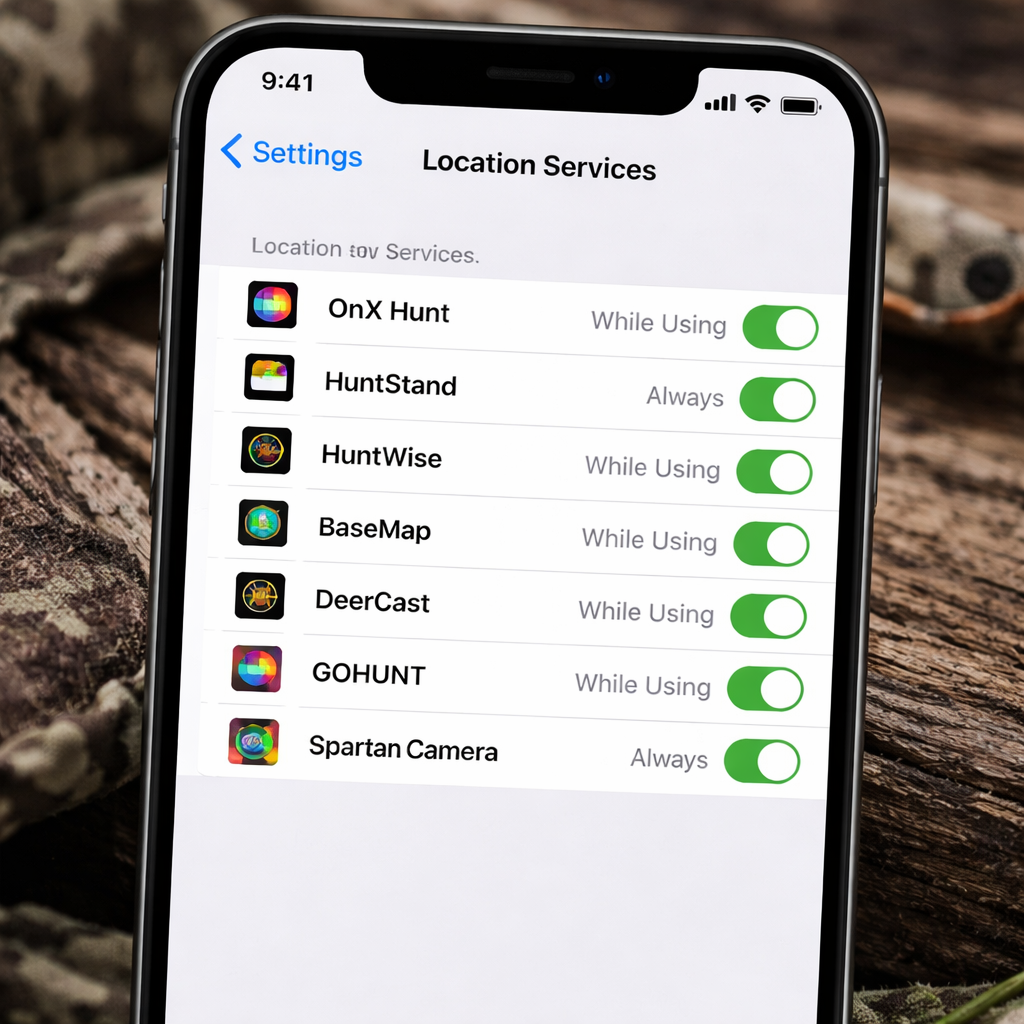
Choose "Allow While Using App" or "Always Allow" depending on your needs. "Always Allow" lets apps track your location even when running in the background, which is useful for trail logging and automatic waypoint creation. "While Using App" provides location data only when the app is active.
For hunting apps, "Always Allow" is usually the better choice. HuntWise and similar apps can provide location-based alerts and automatically log your hunting activities when given full location access.
To verify location permissions after setup:
- Open Settings on your iPhone
- Scroll down and tap Privacy & Security
- Tap Location Services
- Find your hunting apps in the list
- Ensure each shows "Always" or "While Using App"
Camera and Photo Permissions
Modern hunting apps integrate camera functionality for documenting harvests, trail camera management, and mapping custom waypoints. These features require camera and photo library permissions.
When an app requests camera access, tap "OK" to allow it. This permission lets apps take photos directly within the app interface. Photo library access allows apps to save images and access existing photos for upload or analysis.
Some hunting apps also request microphone access for voice notes or wind detection features. While not always essential, these permissions can enhance app functionality during actual hunts.
Storage and Offline Map Setup
Offline maps are crucial for hunting in areas without cell coverage. onX Hunt and other mapping apps allow you to download map sections directly to your iPhone for offline use.
Setting up offline maps requires several steps:
Choose Your Download Area: Most apps let you select rectangular areas to download. Start with your primary hunting locations and expand from there. Larger areas consume more storage but provide better coverage.
Select Map Layers: Choose which map types to download. Satellite imagery provides the most detail but uses the most storage. Topographic maps are smaller but show terrain features clearly. Many hunters download both for different situations.
Manage Storage: Monitor how much space offline maps consume. You can typically delete and re-download maps as needed, but this requires internet access.
Notification and Alert Configuration
Hunting apps can provide valuable alerts about weather changes, optimal hunting times, and location-based reminders. Configure notifications to get important information without constant interruptions.
Most hunting apps offer several notification types:
- Weather Alerts: Notifications about significant weather changes that might affect animal movement
- Hunt Forecasts: Alerts when conditions are predicted to be optimal for hunting
- Location Reminders: Notifications when you enter or leave specific hunting areas
- Regulatory Updates: Alerts about season changes or regulation updates
Enable notifications selectively based on your hunting style. If you hunt the same property regularly, location-based alerts might not be necessary. But weather and forecast notifications can help you plan hunting times more effectively.
Account Setup and Data Sync
Most premium hunting apps require account creation for accessing advanced features and syncing data across devices. Set up accounts during initial configuration rather than waiting until you're in the field.
Account setup typically involves:
- Creating a username and password
- Providing an email address for account recovery
- Agreeing to terms of service and privacy policies
- Choosing subscription levels if applicable
Enable data syncing if you use multiple devices. This ensures waypoints, maps, and settings stay consistent between your iPhone and any tablets or computers you use for hunt planning.
Take time to explore each app's settings menu after completing the initial hunting app download iOS setup. Many valuable features are hidden in settings rather than prominently displayed in the main interface. Understanding all available options helps you get maximum value from your hunting apps.
Step 5: Optimizing Your iPhone for Hunting App Performance
Successfully completing your hunting app download iOS process is only half the battle. Your iPhone needs optimization to run hunting apps reliably in field conditions. Cold weather, limited battery access, and remote locations create challenges that require specific preparations.
Hunting apps are resource-intensive. They use GPS constantly, display detailed maps, and often run multiple background processes. Without proper optimization, your iPhone might die just when you need it most. Smart hunters prepare their devices like they prepare their gear.
Battery Management Strategies
Battery life is your biggest concern when using hunting apps in the field. GPS tracking, bright map displays, and cellular searching drain batteries faster than normal phone usage. Plan for extended battery life through both settings and external solutions.
Enable Low Power Mode: This iOS feature extends battery life by reducing background activity, dimming the display, and limiting some visual effects. You can enable it manually before heading to the field, or iOS will prompt you when battery drops to 20%.
Adjust Screen Brightness: Hunting often happens in low-light conditions where full screen brightness isn't necessary. Reduce brightness manually or enable auto-brightness to let iOS adjust based on ambient light.
Close Unnecessary Apps: Before using hunting apps, close other applications running in the background. Social media, music streaming, and other apps consume processing power and battery even when not actively used.
Turn Off Non-Essential Features: Disable Bluetooth, Wi-Fi, and cellular data when using offline maps. These radios consume power searching for connections even when none are available.
Consider external battery solutions for extended hunts. Portable battery packs designed for outdoor use can recharge your iPhone multiple times. Look for packs rated for cold weather operation, as standard batteries lose capacity in freezing temperatures.
Storage Optimization
Hunting apps require significant storage space, especially when downloading offline maps for large areas. Apps like MyHunt can consume several gigabytes once you add detailed maps, photos, and tracking data.
Optimize storage before hunting season:
Clean Photo Library: Move hunting photos from previous seasons to cloud storage or external drives. This frees space for new photos and map downloads.
Delete Unused Apps: Remove applications you haven't used recently. You can always re-download them later if needed.
Manage Offline Maps: Download only the map areas you'll actually hunt. You can delete and re-download maps as your hunting locations change throughout the season.
Clear App Caches: Some hunting apps accumulate cached data over time. Check app settings for options to clear cached maps or photos.
Cold Weather Performance
iPhones perform poorly in extreme cold. Batteries drain faster, screens become less responsive, and the device may shut down unexpectedly. Hunting often happens in exactly these conditions, so preparation is essential.
Keep your iPhone warm by storing it in an inside jacket pocket close to your body. Avoid leaving it in external pockets or gear bags where it's exposed to ambient temperature. Body heat maintains optimal operating temperature.
If your iPhone does shut down from cold, don't try to restart it immediately. Bring it to room temperature gradually, then attempt to power it on. Rapid temperature changes can damage internal components.
Consider a cold-weather case designed for outdoor activities. These cases provide insulation and often include features like glove-friendly screen protectors and attachment points for securing your device.
Network and Connectivity Settings
Hunting areas often have poor or no cellular coverage. Configure your iPhone to handle these conditions gracefully without constantly searching for signals and draining battery.
Enable Airplane Mode: In areas with no cell service, airplane mode prevents your iPhone from constantly searching for towers. You can still use GPS and offline apps while conserving battery.
Download Maps in Advance: Before leaving cellular coverage, ensure all necessary offline maps are downloaded and updated. Test that maps load properly without an internet connection.
Configure Emergency Features: Set up Emergency SOS and Medical ID information. These features can work even with limited cellular coverage and might save your life in emergency situations.
Performance Monitoring
Monitor your iPhone's performance during hunting trips to identify potential issues before they become problems. Pay attention to battery drain rates, app responsiveness, and storage usage.
Check battery health periodically through Settings > Battery > Battery Health & Charging. If maximum capacity drops below 80%, consider battery replacement before hunting season. A degraded battery won't provide reliable field performance.
Test all hunting apps thoroughly before important hunts. Verify that offline maps work properly, GPS accuracy meets your needs, and all essential features function without internet connectivity.
The goal is making your iPhone as reliable as your rifle. With proper optimization, your hunting app download iOS investment pays dividends through consistent, dependable performance when you need it most.
Troubleshooting Common Download and Setup Issues
Even with careful preparation, hunting app download iOS problems can occur. Understanding common issues and their solutions prevents minor technical problems from ruining hunting trips. Most problems have simple fixes if you know what to look for.
The most frustrating issues happen in the field when you can't access technical support or reliable internet. Preparing for these scenarios and knowing basic troubleshooting steps keeps your hunting apps functional when you need them most.
Download Failures and Incomplete Installations
Large hunting apps sometimes fail to download completely, leaving you with non-functional installations. Apple Support identifies several common causes and solutions for App Store download problems.
Billing Issues: Even free apps might require a valid payment method on file. If you see "billing problem with previous purchase" or "verification required" messages, update your payment information in Settings > [Your Name] > Media & Purchases.
Network Interruptions: Large hunting apps are vulnerable to network interruptions during download. If a download stalls, try the prioritize download feature by touching and holding the app icon and selecting "Prioritize Download" from the menu.
Storage Issues: Insufficient storage causes download failures even if the initial app fits. iOS needs extra space for installation processes. Free up additional storage beyond the app's stated size requirements.
iOS Compatibility: Older iPhones might not support the latest versions of hunting apps. Check app requirements in the App Store listing and compare with your device's iOS version in Settings > General > About.
If downloads continue failing, restart your iPhone and try again. Sometimes iOS needs a fresh start to properly handle large app installations. This simple step resolves many persistent download issues.
Permission and Access Problems
Hunting apps require specific permissions to function properly. Permission problems often manifest as apps that open but don't work correctly. GPS features fail, cameras don't activate, or offline maps won't download.
Check permissions systematically when hunting apps malfunction:
- Open Settings > Privacy & Security
- Review Location Services for each hunting app
- Check Camera permissions if photo features don't work
- Verify Storage permissions for offline map downloads
Sometimes iOS revokes permissions after app updates or system changes. Re-enabling permissions usually resolves functionality issues immediately.
For location accuracy problems, try resetting location and privacy settings. Go to Settings > General > Transfer or Reset iPhone > Reset > Reset Location & Privacy. This clears all location permissions and lets you set them fresh for each app.
Offline Map and Sync Issues
Offline maps are essential for hunting in remote areas, but they're also a common source of problems. Maps might fail to download, become corrupted, or not display properly when needed.
Download Failures: Offline map downloads require stable internet connections and sufficient storage. If downloads fail, check both your network connection and available storage space. Try downloading smaller map areas if large regions consistently fail.
Corrupted Map Data: Maps that display incorrectly or show blank areas might be corrupted. Delete the problematic map section and re-download it with a strong internet connection. This usually resolves display issues.
Sync Problems: If waypoints or custom data don't appear across devices, check your account login status. Many hunting apps require active internet connections to sync data between devices.
Test offline functionality before hunting trips. Load your hunting apps in airplane mode and verify that all essential features work without internet connectivity. This identifies problems while you can still fix them.
Performance and Battery Issues
Hunting apps are resource-intensive and can cause performance problems on older iPhones or devices with limited storage. Symptoms include slow app loading, unresponsive interfaces, and rapid battery drain.
Memory Management: Close other apps before using hunting apps intensively. Double-tap the home button (or swipe up from bottom on newer iPhones) and swipe up on unnecessary apps to close them.
Background App Refresh: Disable background refresh for non-essential apps to preserve battery and processing power for hunting apps. Go to Settings > General > Background App Refresh and turn off refresh for apps you don't need updating constantly.
Thermal Management: iPhones can overheat during intensive use, especially in direct sunlight. If your device becomes hot, move it to shade and close unnecessary apps. Overheating can cause automatic shutdowns and reduced performance.
For persistent performance issues, restart your iPhone regularly during hunting trips. A simple restart clears memory and often resolves slowdown problems caused by extended app usage.
Emergency Troubleshooting in the Field
When hunting apps fail in remote locations, you need quick solutions that don't require technical support or internet access. Develop a systematic approach to field troubleshooting.
Force Restart: If hunting apps become completely unresponsive, force restart your iPhone. For iPhone 8 and newer: press and quickly release volume up, press and quickly release volume down, then press and hold the side button until you see the Apple logo.
App Reinstallation: If you have cellular service, delete and reinstall problematic apps. This clears corrupted data and often resolves persistent issues. Remember that you'll lose any unsaved local data.
Backup Navigation: Always carry backup navigation tools. Compass, paper maps, and GPS coordinates written down provide alternatives when digital tools fail.
The key to successful hunting app download iOS troubleshooting is preparation. Test everything thoroughly before hunting season, understand common problems and their solutions, and always have backup plans for critical functions like navigation and emergency communication.
Frequently Asked Questions
Do I need cellular service for hunting apps to work on my iPhone?
Most hunting apps work partially without cellular service, but functionality depends on preparation. Apps like onX Hunt and HuntStand let you download offline maps before losing cell coverage. GPS tracking, waypoint marking, and map navigation work without cellular service once maps are downloaded. However, weather updates, hunt forecasts, and data syncing require internet connectivity. Download all necessary maps and updates while you have Wi-Fi or cellular service before heading to remote hunting areas.
How much storage space do hunting apps typically require on iOS?
Basic hunting app downloads range from 100-500MB, but offline maps dramatically increase storage requirements. A single detailed map covering 50 square miles can consume 1-2GB of storage. Serious hunters often need 5-10GB of free space for multiple apps and comprehensive map coverage. Before your hunting app download iOS process, check available storage in Settings > General > iPhone Storage. Consider deleting photos, videos, or unused apps to make room for hunting tools and offline maps.
Can I share waypoints and hunting data between different hunting apps?
Most hunting apps use proprietary data formats, making direct sharing difficult. However, many apps export data as GPX or KML files that other apps can import. onX Hunt, HuntStand, and similar apps typically offer export features in their desktop versions. You can export waypoints from one app and import them into another, though you might lose app-specific features like custom icons or notes. Some hunters use this method to test different apps while preserving their marked hunting locations.
What should I do if my hunting app drains my iPhone battery too quickly?
Hunting apps consume significant battery due to constant GPS usage and bright map displays. Enable Low Power Mode in Settings > Battery to extend runtime. Reduce screen brightness, close unnecessary background apps, and disable Wi-Fi and Bluetooth in areas without coverage. Consider external battery packs rated for outdoor use. Keep your iPhone warm in cold weather, as batteries drain faster in freezing temperatures. Some hunters carry multiple charged devices or portable chargers for extended backcountry trips.
Are free hunting apps sufficient, or do I need premium subscriptions?
Free versions of hunting apps provide basic functionality suitable for casual hunters or those exploring new tools. However, serious hunters typically benefit from premium features like unlimited offline map downloads, detailed property boundaries, and advanced weather forecasting. Premium subscriptions for apps like onX Hunt or HuntStand typically cost $60-100 annually. Start with free versions to test compatibility with your hunting style, then upgrade to premium if you find the apps valuable for your specific needs.
How do I ensure my hunting apps work accurately for property boundaries and regulations?
Hunting app property boundaries are generally accurate but shouldn't be considered legally definitive. Apps like onX Hunt and HuntStand source data from government records, but boundaries can change and data might have delays. Always verify critical boundary information with landowners, local authorities, or official government sources. For hunting regulations, use apps as convenient references but check official state wildlife agency websites for the most current rules. Treat hunting apps as valuable tools that supplement, not replace, official information sources.
What's the best way to organize multiple hunting apps on my iPhone?
Create a dedicated "Hunting" folder on your home screen to keep all hunting-related apps together. Place your most frequently used app (typically a mapping app) directly on the home screen for quick access. Organize apps within the folder by function: mapping apps first, then weather/forecast apps, followed by specialized tools like ballistics calculators. Consider using iOS shortcuts to create quick actions for common tasks like opening specific map areas or checking weather conditions. This organization saves valuable time when you need hunting information quickly in the field.
Can hunting apps work on older iPhone models, and are there any limitations?
Most hunting apps support iPhones from the last 4-5 years, but older models may experience limitations. iPhone 6s and newer generally run current hunting apps adequately, though performance might be slower with complex map rendering. Very old models might not support the latest app versions or lack sufficient storage for offline maps. Check app requirements in the App Store before downloading. If your iPhone struggles with hunting apps, consider upgrading your device or using simpler apps with fewer resource requirements. Battery life is typically shorter on older devices when running GPS-intensive hunting applications.
Conclusion
Successfully completing your hunting app download iOS process transforms your iPhone into a powerful hunting tool. But the download is just the beginning. Proper app selection, configuration, and optimization determine whether your digital tools enhance or hinder your hunting success.
Start by choosing apps that match your hunting style and needs. Mapping apps like onX Hunt and HuntStand provide essential navigation and property boundary information. Weather and movement prediction apps like DeerCast help time your hunts for maximum effectiveness. Ballistics apps ensure accuracy for long-range shots. The key is avoiding redundancy while covering all essential functions.
Take time to properly configure permissions and settings after downloading. Location access, offline map downloads, and notification preferences require careful setup to work reliably in hunting conditions. Test everything thoroughly before heading to the field, especially offline functionality that you'll depend on in remote areas.
Optimize your iPhone for field conditions through battery management, storage cleanup, and cold weather preparation. The best hunting apps Canada has to offer work excellently when your device is properly prepared for outdoor use. External battery packs, appropriate cases, and backup navigation methods ensure your digital tools remain functional throughout extended hunting trips.
Remember that hunting apps are tools, not magic solutions. They provide valuable information and capabilities, but success still depends on your hunting skills, preparation, and understanding of animal behavior. Use apps to enhance your knowledge and efficiency, not replace fundamental hunting competencies.
Regular maintenance keeps your hunting app download iOS investment valuable over time. Update apps when new versions are available, refresh offline maps periodically, and review your app selection each season as your hunting needs evolve. Technology changes rapidly, and staying current ensures you have access to the best available tools.
With proper selection, setup, and optimization, your iPhone becomes an indispensable hunting companion. The combination of detailed maps, weather forecasting, and specialized tools provides advantages that previous generations of hunters never imagined. Invest the time to do it right, and your hunting app download iOS efforts will pay dividends for seasons to come.